
Convertor is the fast, private way to turn your videos and audio into the exact format you need — right on your iPhone or iPad. Everything happens on your…
Download on the App Store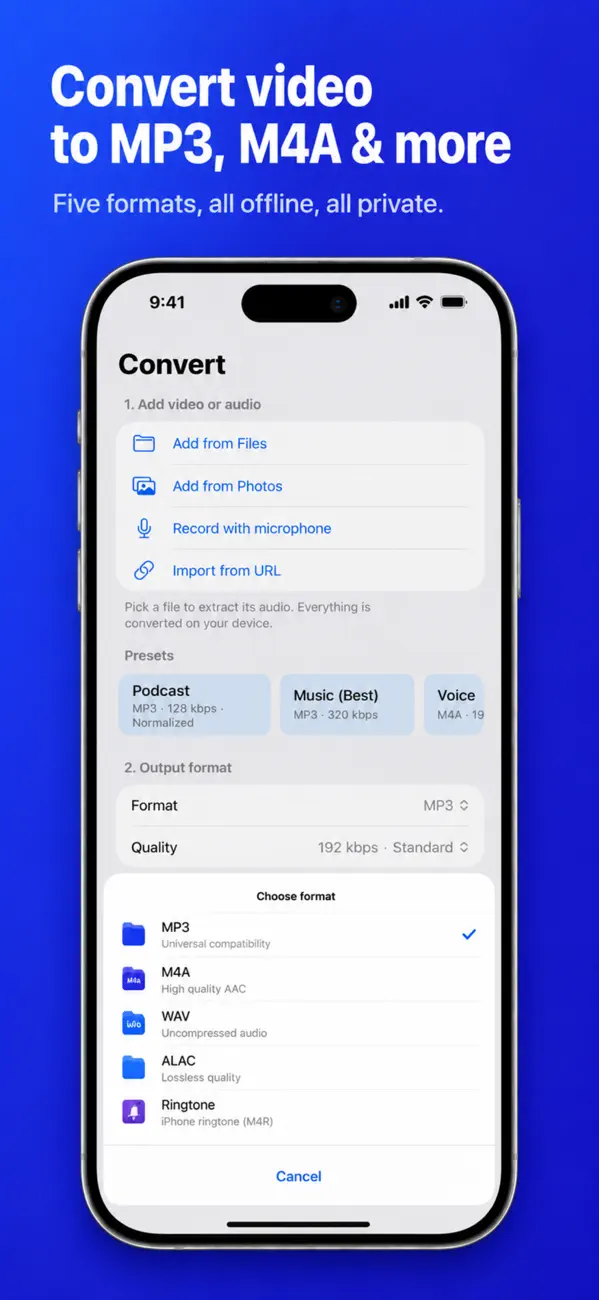
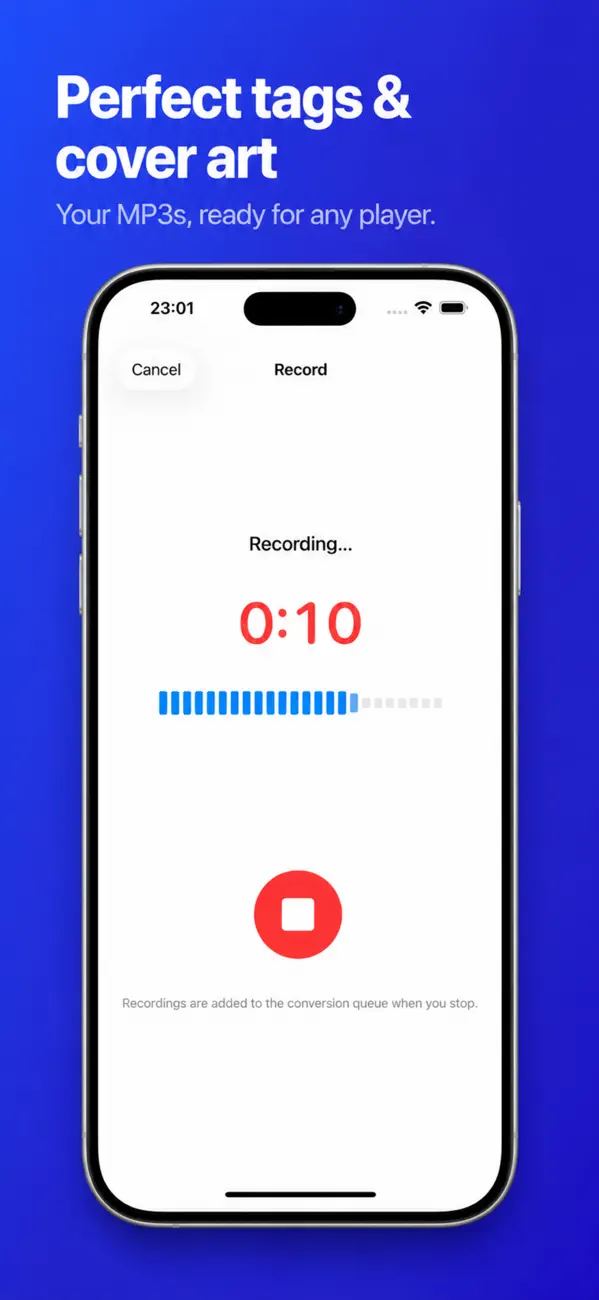
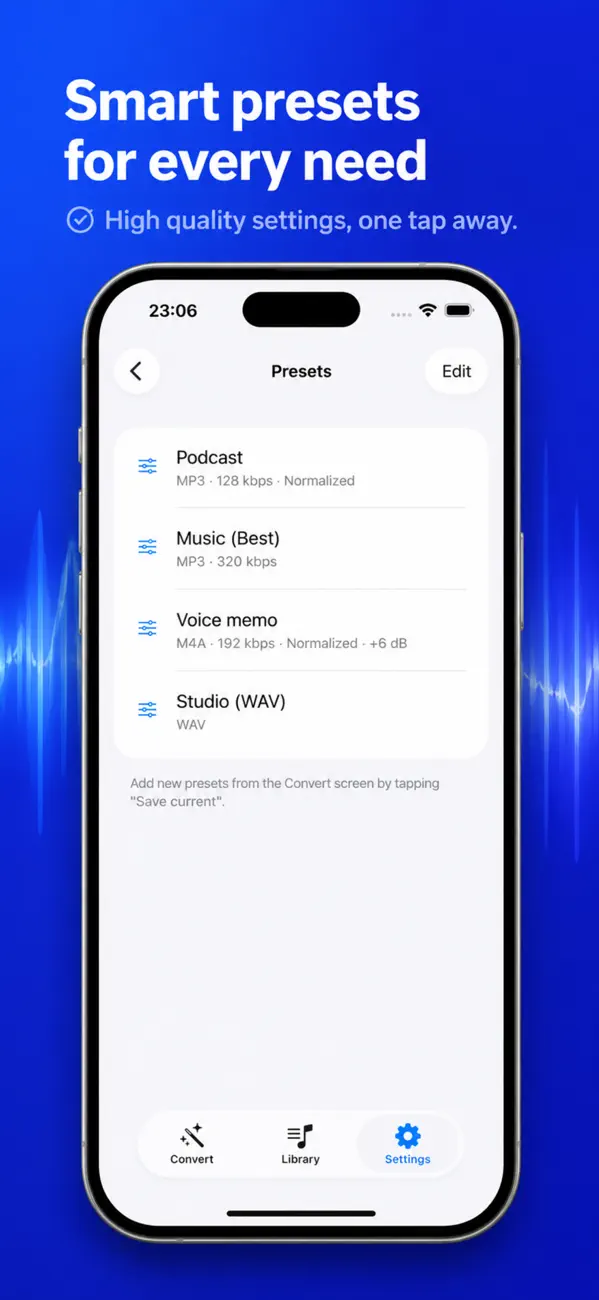
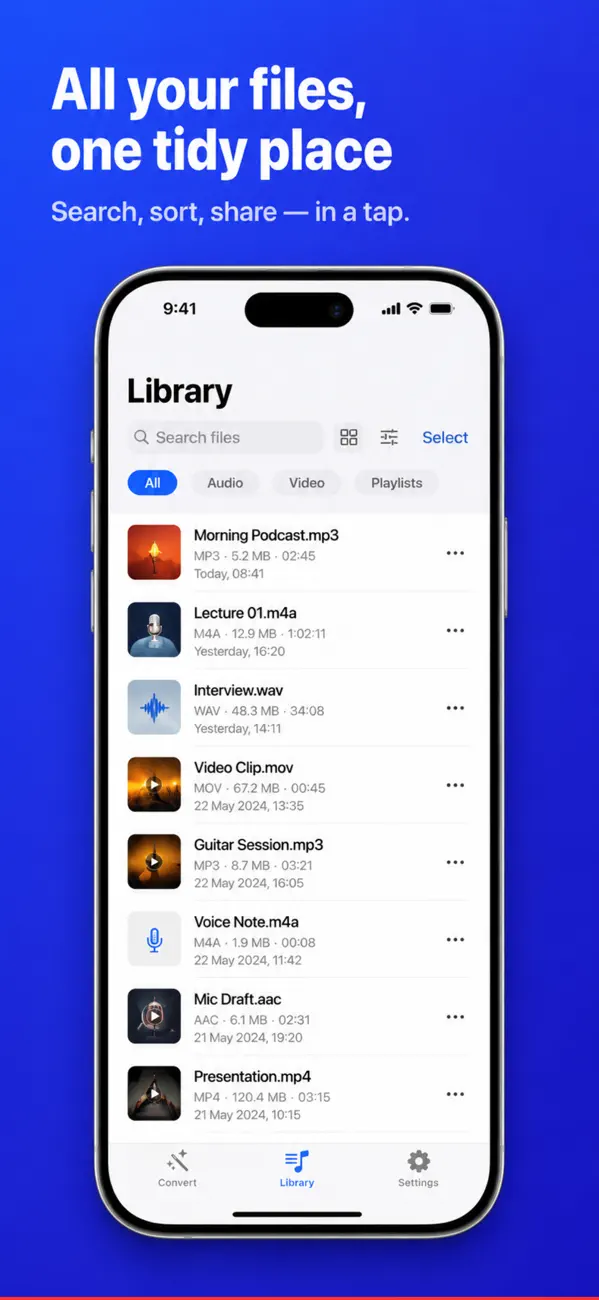
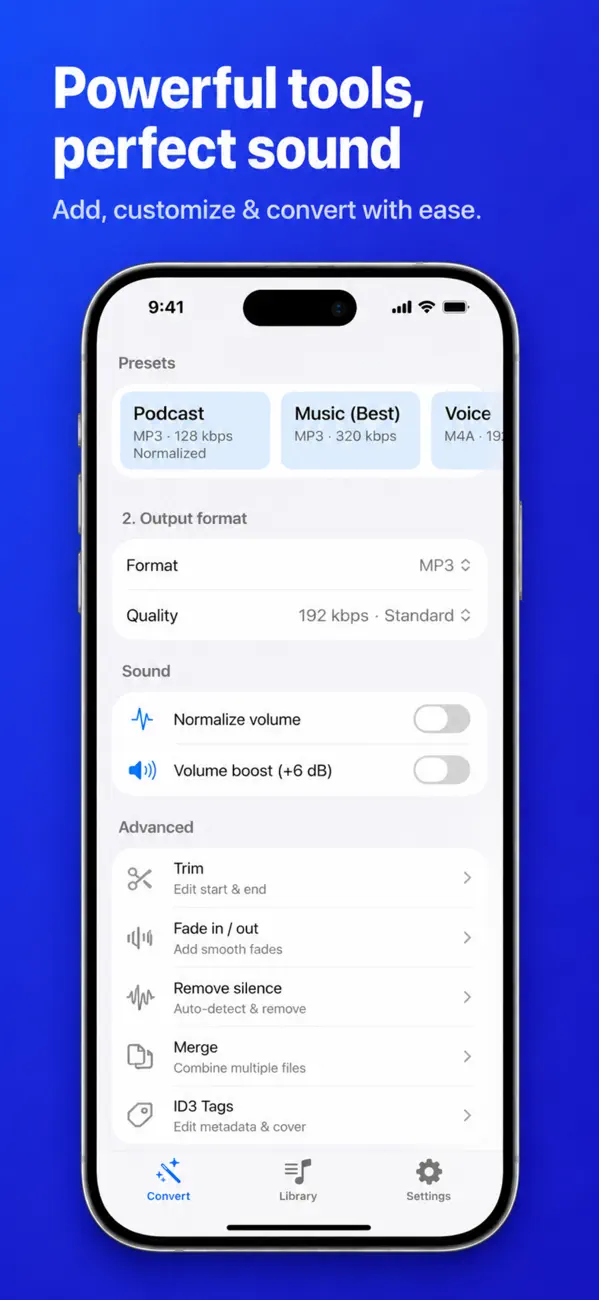
Drop in any video or audio file (or record one on the spot) and convert it to MP3, M4A, WAV, lossless (ALAC), or an iPhone ringtone. Everything happens on your device, so it works offline and your files always stay private.
• MP3 — universal, perfect for music and podcasts
• M4A (AAC) — small files, high quality
• WAV — uncompressed, studio quality
• ALAC (lossless) — lossless quality in a smaller file
• Ringtone (M4R) — create your own custom iPhone ringtones
• Extract audio from MP4, MOV, M4V and more
• Record directly in the app with your microphone
• Import files from any direct URL
File conversion looks like one operation but is really two very different ones, and confusing them is why people lose quality they did not need to lose.
Two things can happen. Remuxing repackages the same audio and video streams into a different container — MKV to MP4, for example. It is fast and lossless because nothing is re-encoded.
Transcoding decodes and re-encodes the content. That is what happens when the codec changes, and it always loses some quality, because lossy formats discard data every time they are written.
Extracting audio to MP3 or M4A is a transcode: the file gets much smaller because the video track is discarded entirely. Quality is capped by the original — a 128 kbps source cannot be improved by exporting at 320 kbps, it just wastes space.
Match or slightly exceed the source bitrate and stop there.
Because lossy compression is not reversible. Each encode throws away detail the algorithm judges inaudible, and the next encode makes that judgement again on already-damaged audio. The artefacts stack — this is generation loss.
Always convert from the original file, never from a previous conversion.
For video, MP4 with H.264 plays on essentially everything; HEVC halves the file size but is less universally supported. For audio, M4A (AAC) beats MP3 at the same bitrate, while MP3 wins on compatibility with older hardware.
If you might edit or re-export later, keep a copy of the original — that decision costs storage now and saves quality forever.
Yes. Convertor: Audio & Video is a free download on the App Store.
Convertor: Audio & Video runs on iPhone and iPad and requires iOS 17.0 or later.
The download size is 5 MB.
The current version is 1.2, released on 2026-08-05.
Convertor: Audio & Video is available in Arabic, English, French, German, Italian, Japanese, Korean, Chinese and more.
Convertor: Audio & Video is built by BIR (Build Intelligent Reality), an independent software studio founded by Birkan Aksoy. BIR has 44 apps on the App Store.


